THE FOLLOWING INSTRUCTIONS ARE FOR UO FOUNDATION SUPPORT TICKET WEB REQUESTORS.
In order to properly submit a support ticket request to the UO Foundation via the web, please follow the steps below.
Logging In To Zendesk
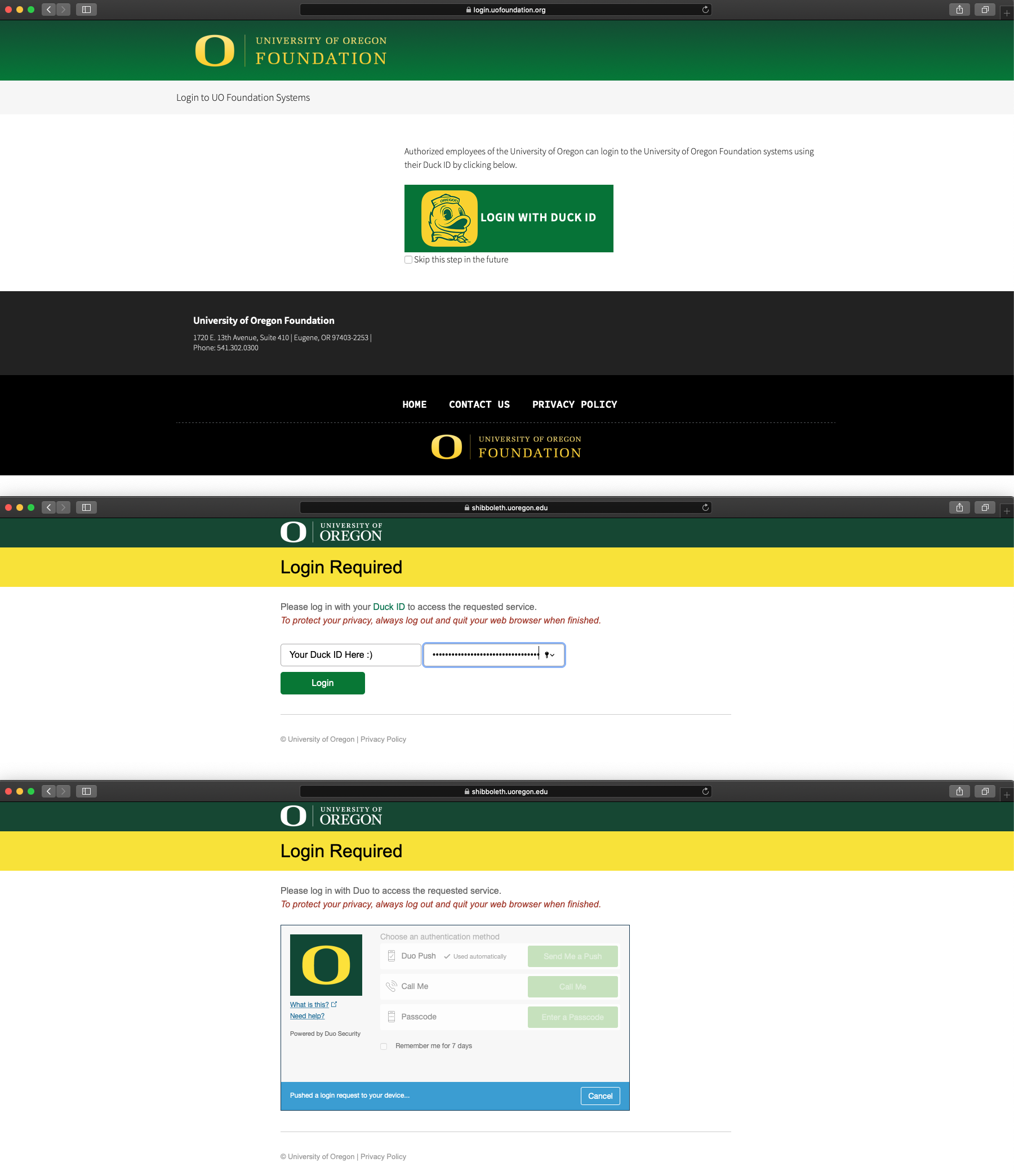
Log in to Okta. You will need to use Duo Two-Factor Authentication to successfully sign in.
Select the Zendesk application . You may be prompted to log in. If so, exit out of the login prompt, refresh the page, and select the Zendesk application once again.
Submitting a Support Ticket
Once logged in to Zendesk, click on the Submit a request icon in the top right corner of the page.
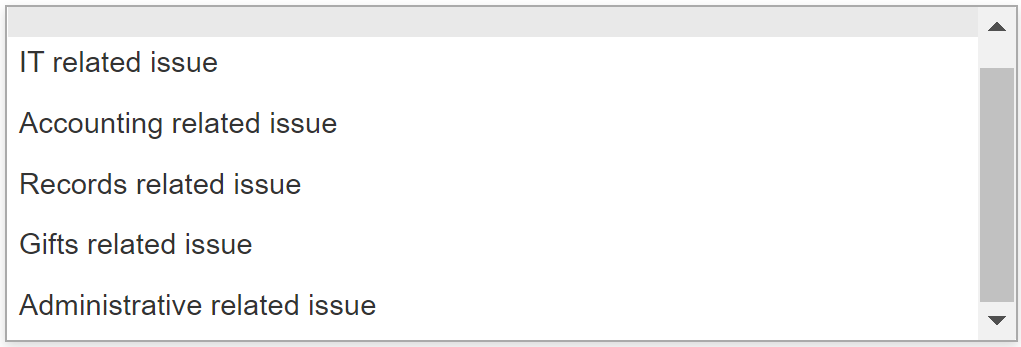
Select a UO Foundation department from the following drop-down menu options:
Complete all required fields, add any supporting attachments, and then press Submit.
Accessing your Support Tickets
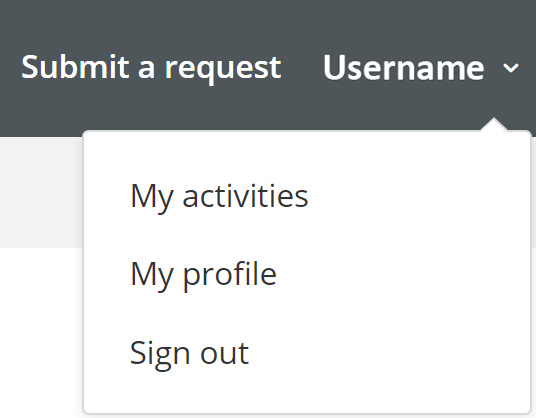
Cick on the User icon in the top right corner of the page.
Select My activities from the drop-down menu.
Select Requests in the top left corner of the page.
Select My requests to view all of your open, pending, and solved support tickets.
Updating your Support Tickets
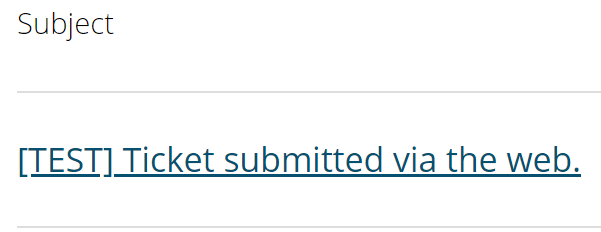
Once on the My requests page, select the Subject line of the desired support ticket.
Select Add to conversation.
Type out an update in the provided text-box and then add any supporting attachments.
Select Submit when finished.
Contacts Regarding Zendesk and UOF Support Tickets
UO Foundation Helpdesk: 541-302-0338 or helpdesk@uofoundation.org

 . You may be prompted to log in. If so, exit out of the login prompt, refresh the page, and select the Zendesk application once again.