THE FOLLOWING INSTRUCTIONS ARE FOR UO FOUNDATION SUPPORT TICKET EMAIL REQUESTORS.
In order to properly submit a support ticket request to the UO Foundation via email, please follow the steps below.
The Process For Submitting A Support Ticket Via Email
1. Determine which department to contact.
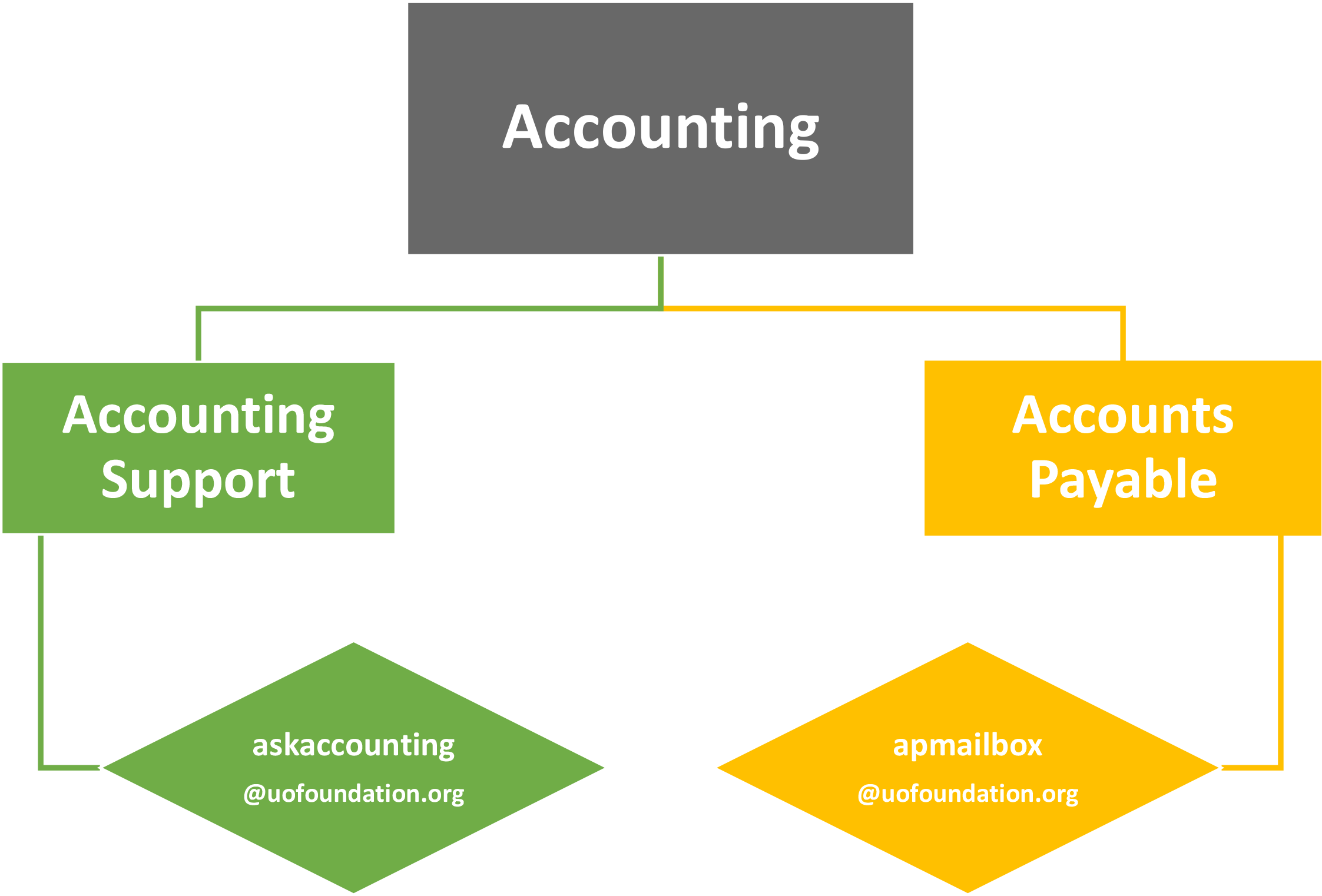
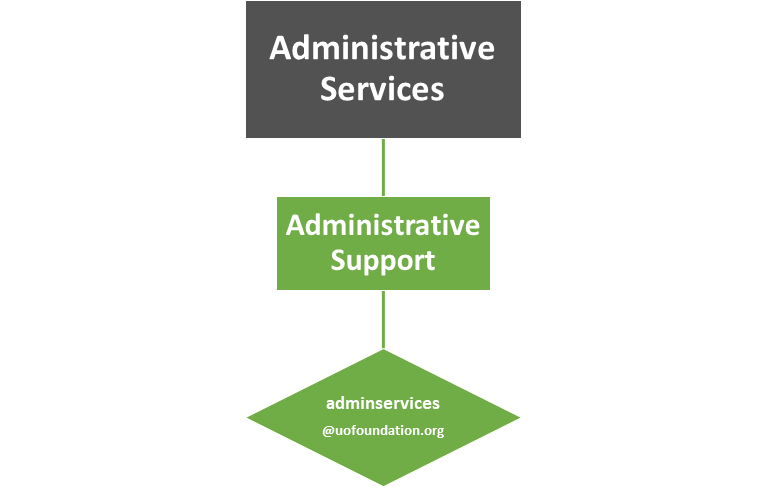
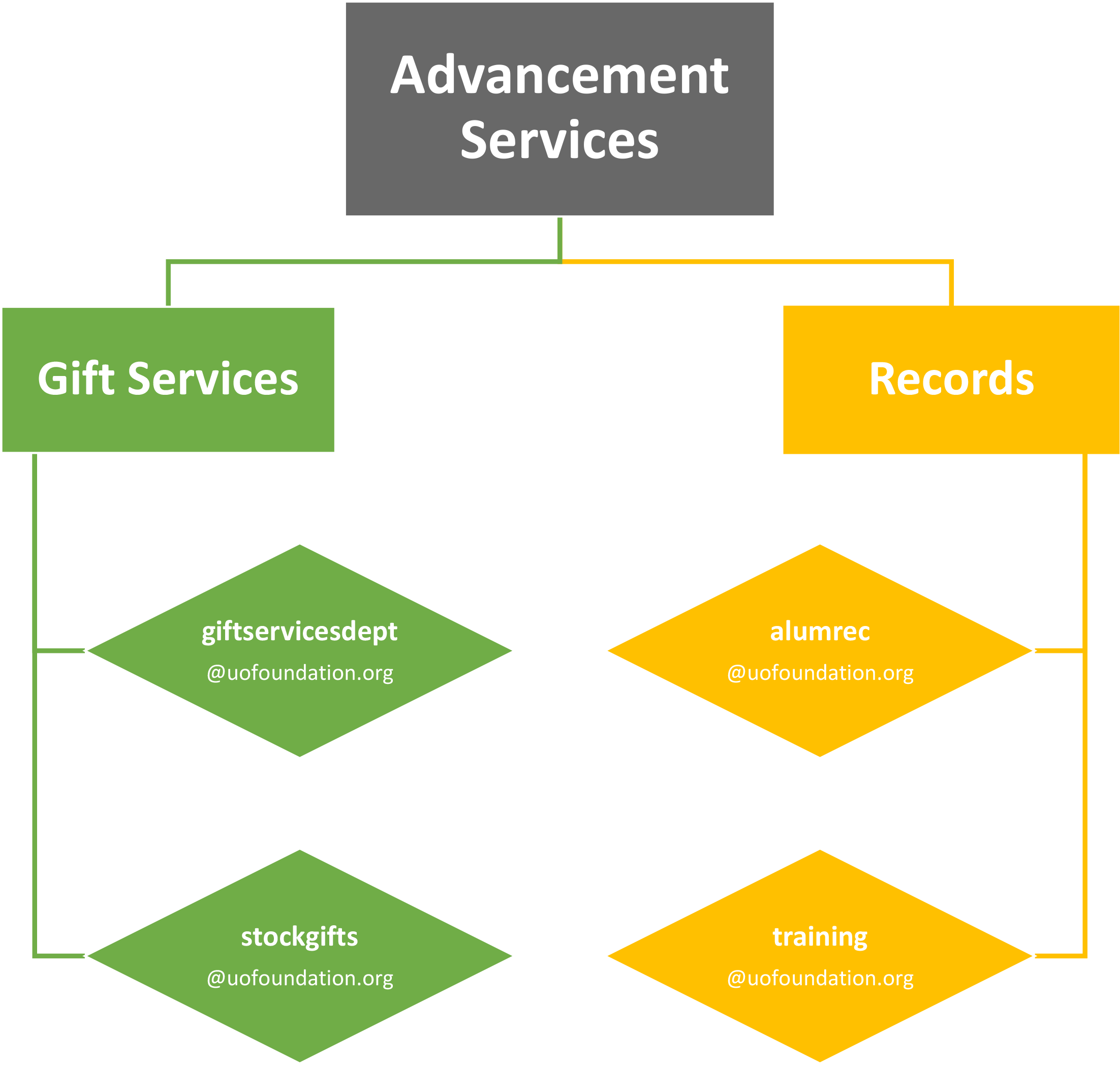
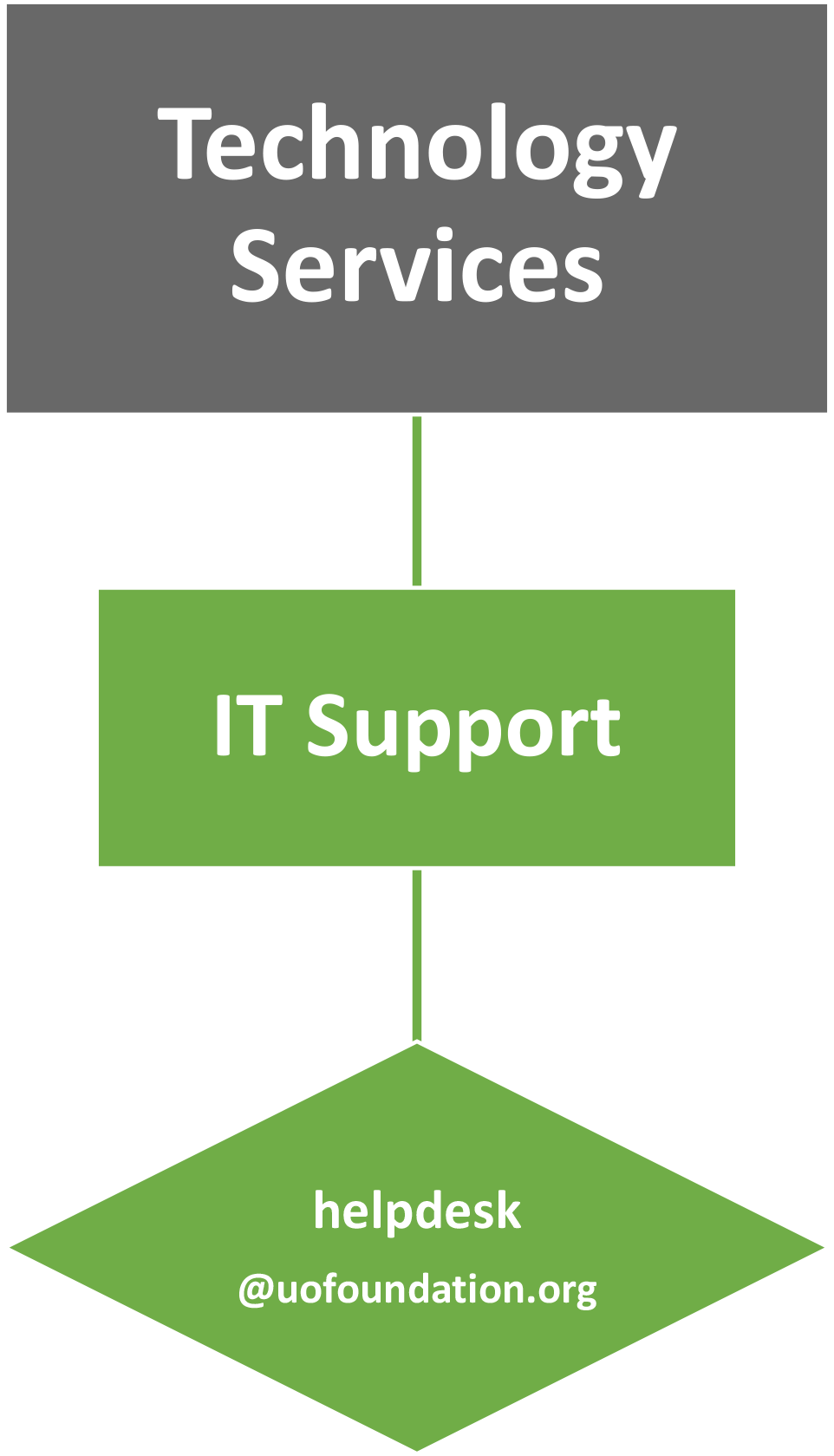
Using the charts directly below, determine which UO Foundation department/sub-department you'd like your support ticket routed to.
2. Submit a support ticket via email.
Send a detailed description of your issue to the corresponding email address found in the charts below. A support ticket will be automatically created for you within the Zendesk ticketing platform. You will not need to create a Zendesk account since you'll be able to track and respond to your support ticket entirely through email.
What To Expect Once You've Submitted A Support Ticket
1. Look out for an email confirmation that your ticket was received.
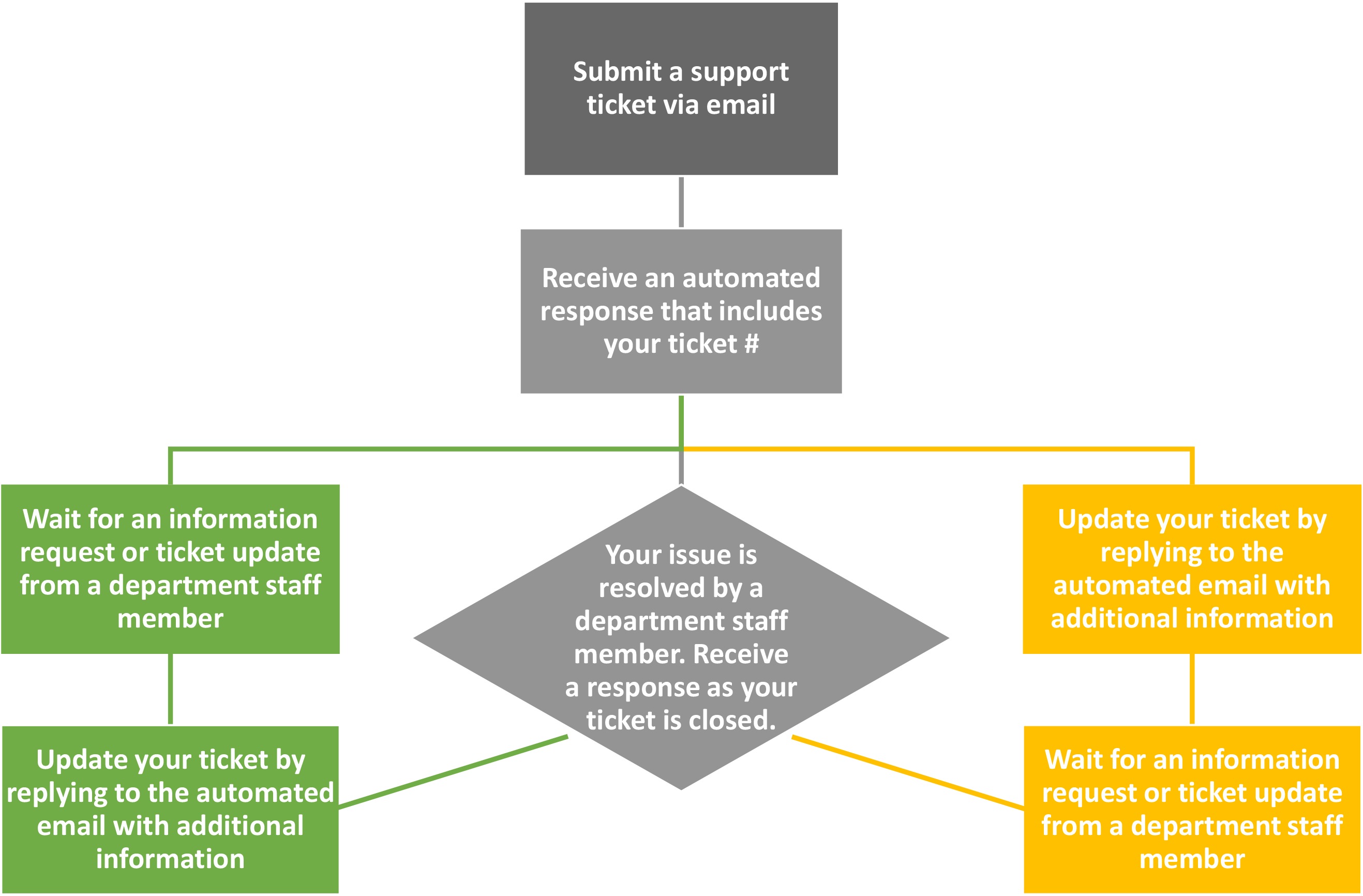
Once you've submitted a support ticket via email, you will receive an automated email response that includes your ticket # and the name of the department handling your request.
2. Wait for an info request OR update your ticket.
After you've received the automated email response, you have the option to wait for an information request or ticket update from a department staff member OR you can reply to the automated email with additional information in order to update your ticket.
3. Look out for an email confirmation that your ticket was resolved.
When your ticket is resolved, you will receive a personalized email response from a department staff member as your ticket is closed.
4. If needed, reopen a resolved ticket.
If you need to reopen the ticket after it's been closed, simply reply back to the email thread. Depending on how much time has passed, this will either reopen the original ticket OR create a followup ticket that is linked to the original ticket.